Quick-start guide for Rhino.Ecologic® 
Version: 0.1.19 beta
Compatible with: Rhino 8+, Grasshopper
Platform: Windows
Release date (beta version): 25.07.2026
Author Quick-Start Guide: Verena Vogler
Rhino.Ecologic® is an advanced ecological simulation framework for Rhino and Grasshopper, designed to seamlessly integrate ecological and environmental knowledge into the architectural and design process. It enables users to model and ecologically analyze architectural projects. Outputs include location- and time-specific 3D species distribution maps, as well as biomass and biodiversity simulations. This document provides quick-start guidelines for the Rhino.Ecologic simulation framework.br>
Step 1: Launch Rhino & Grasshopper
💡 Tip: Make sure your Rhino document units are set to meters before running any analysis. Rhino.Ecologic relies on metric units (e.g., voxel size, soil depth) for correct results, so an incorrect unit setting will produce inaccurate simulations.br>
- Open Rhino 8.
- Go to File > Open in Rhino.
- Open one of the sample
.3dmandghfiles. You can find the example files under Rhino.Ecologic in the menu on the right-hand side: open the Rhino.Ecologic dropdown menu, which contains Tutorial, Examples, Snippets, and a link to the full documentation. - Start Grasshopper by typing
_Grasshopperin the Rhino command line. - Ensure the Rhino.Ecologic tab is visible in the Grasshopper ribbon.
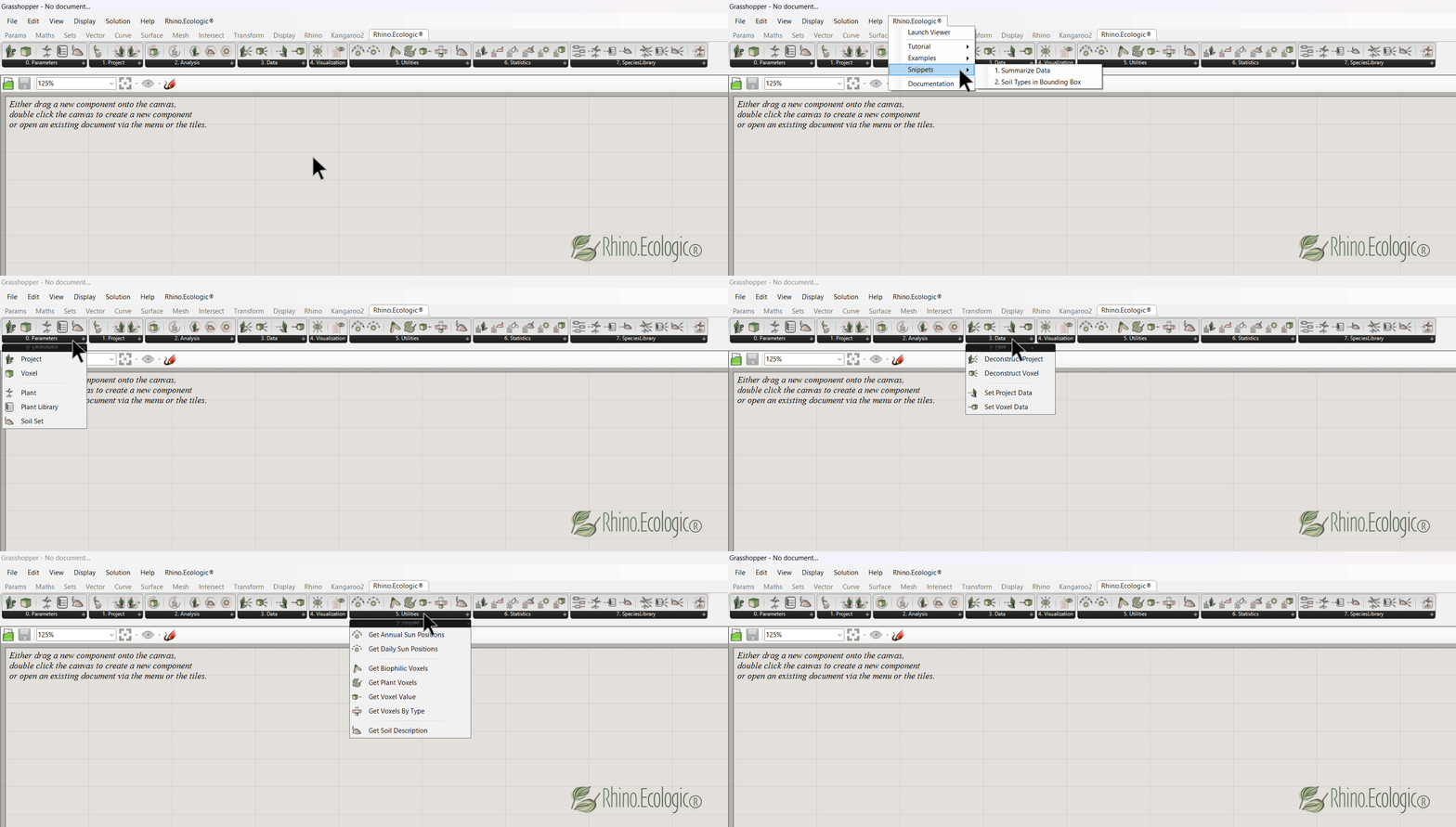
Loaded Rhino.Ecologic® toolbar in Grasshopper.
The Rhino.Ecologic toolbar includes the following tabs:
- 00_Parameters
- 01_Project
- 02_Analysis
- 03_Data
- 04_Visualisations
- 05_Utilities
- 06_Statistics
- 07_Species Library
💡 Tip: For more information on the Rhino.Ecologic® user interface, see the User Guide, Chapter 2 and Chapter 3.
Step 2: Load an example file
- Go to File > Open in Grasshopper.
- Open one of the example files, the Tiny Houses
.3dmfile and the Quick-start.ghfile, under Rhino.Ecologic in the menu, via the Rhino.Ecologic dropdown menu under Examples.
Step 3: Set up your Rhino.Ecologic project
- Set up your
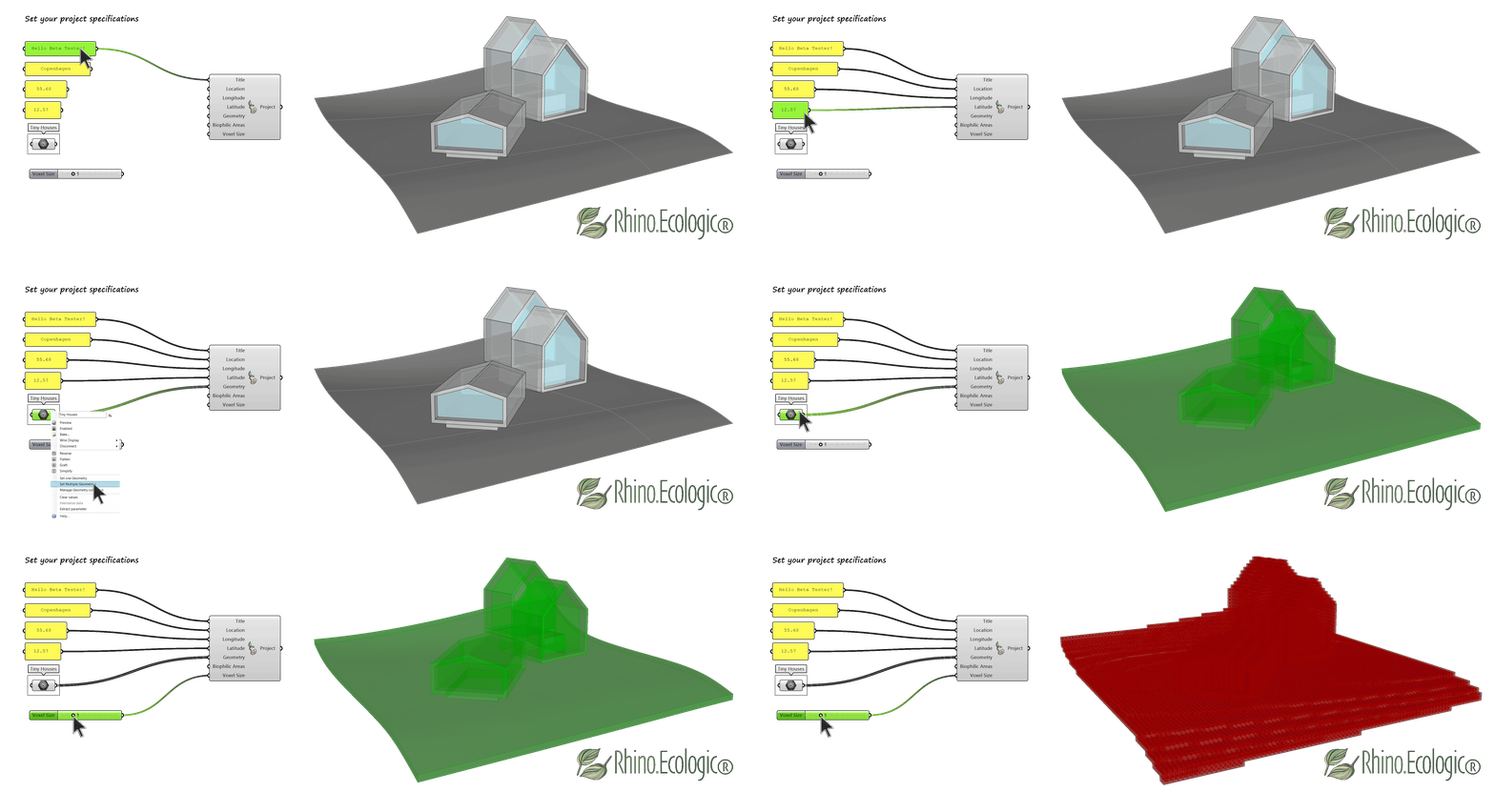
Rhino.Ecologic Project(P)by referencing your project in theCreate ProjectGrasshopper component. - Set the project parameters such as the project’s
Title(T), the project’s geographicLocation(L)includingLongitude(Lon)andLatitude(Lat), and define theVoxel Size(VS). - Reference your Rhino geometry (e.g., building or terrain 3D model) by right-clicking the
Geometry Parametercomponent and selectingSet one geometryorSet multiple geometries. You can also input your Grasshopper model. - To run the environmental and ecological analysis on the entire project, leave the
Biophilic Areas(BA)input empty.
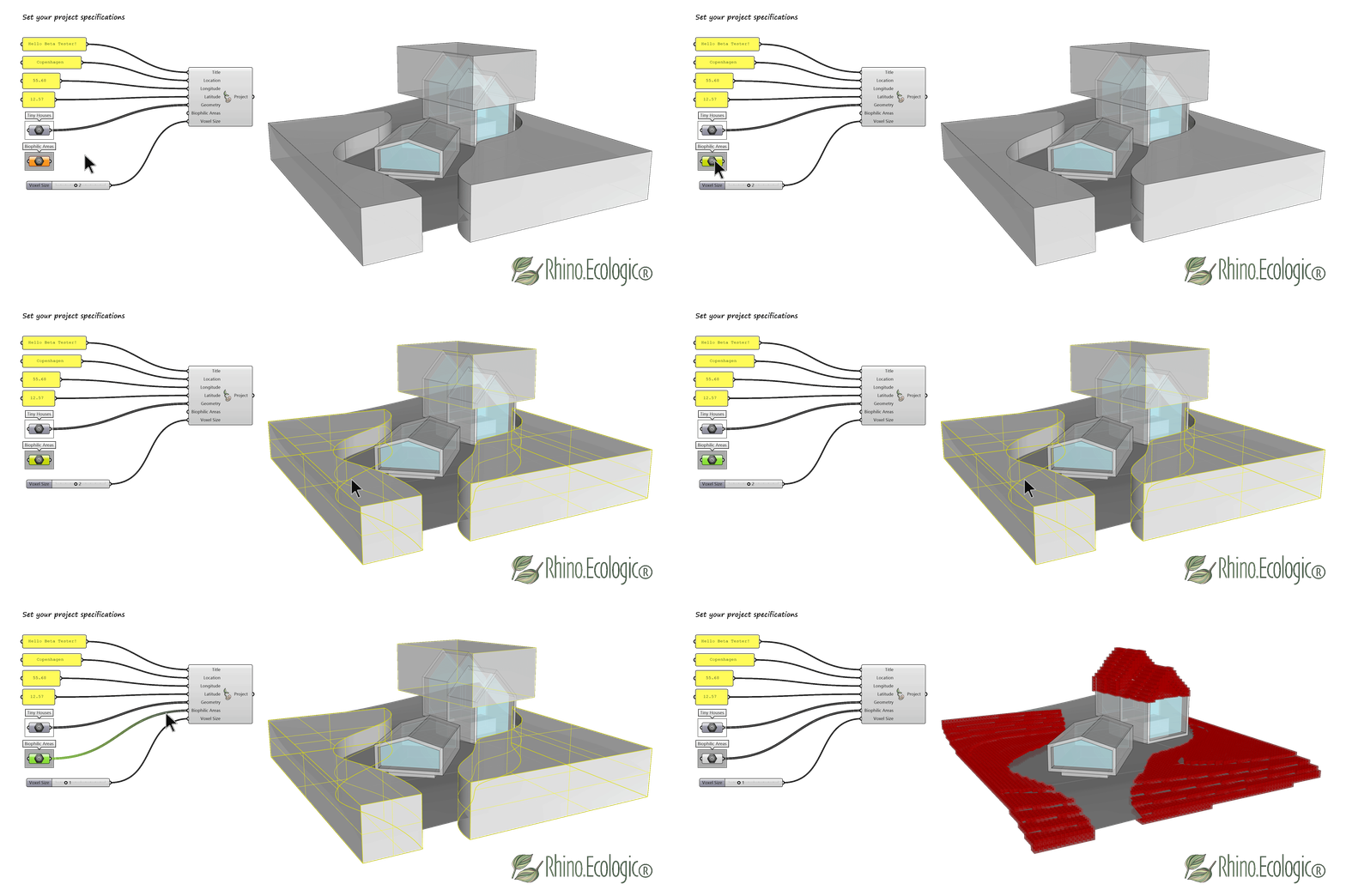
- To analyze only specific regions of your project, reference a
bounding box(or multiple boxes) around those areas to theBiophilic Areasinput.
Step 4: Run the ecological analysis
- To run the ecological analysis, use the default settings for
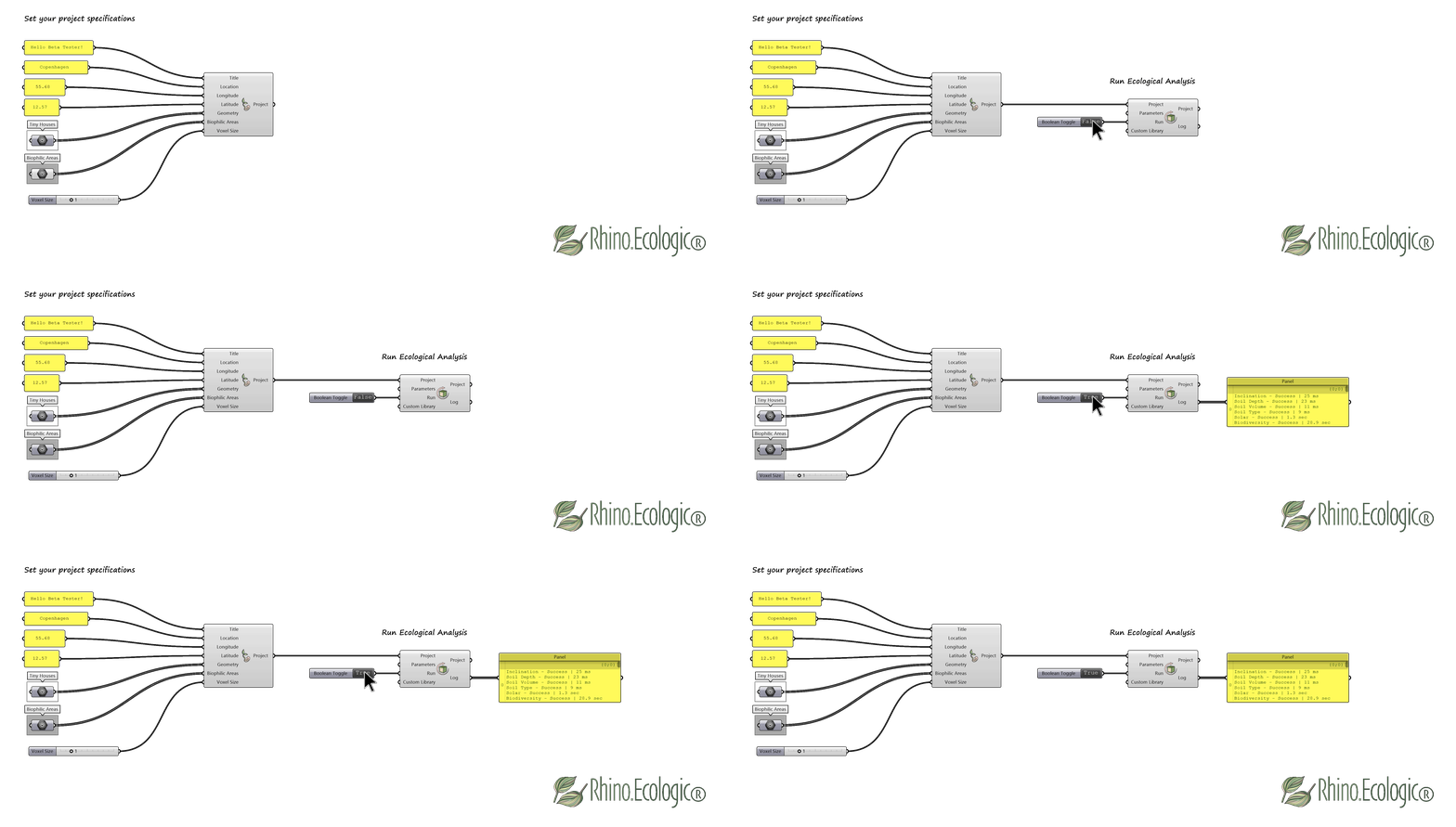
ParametersandCustom Libraryin theRun Ecological Analysiscomponent. - To start the environmental and ecological analysis pipeline, set the
Runboolean toggle fromFalse(analysis inactive) toTrue(analysis active). - The
Run Ecological Analysiscomponent outputs data associated with geometry, environmental, and ecological parameters, includingInclination,Soil Depth,Soil Volume,Soil Type,Solar, andBiodiversityanalysis results. - Review the
Logoutput to ensure the analyses finished successfully.
- To run a customized analysis, parameterize the pipeline using the
Biodiversity Parameters(e.g., simulation duration in timesteps/years),Soil Depth Parameters(soil depth behavior and vertical constraints), andSolar Parameters(e.g.,Analysis Type,Analysis Span,Day of Year, andNoon Hour) components. You can also supply aCustom Libraryas aPlant Libraryto define project-specific species and traits. Rhino.Ecologic includes predefined ecosystem-based example libraries.
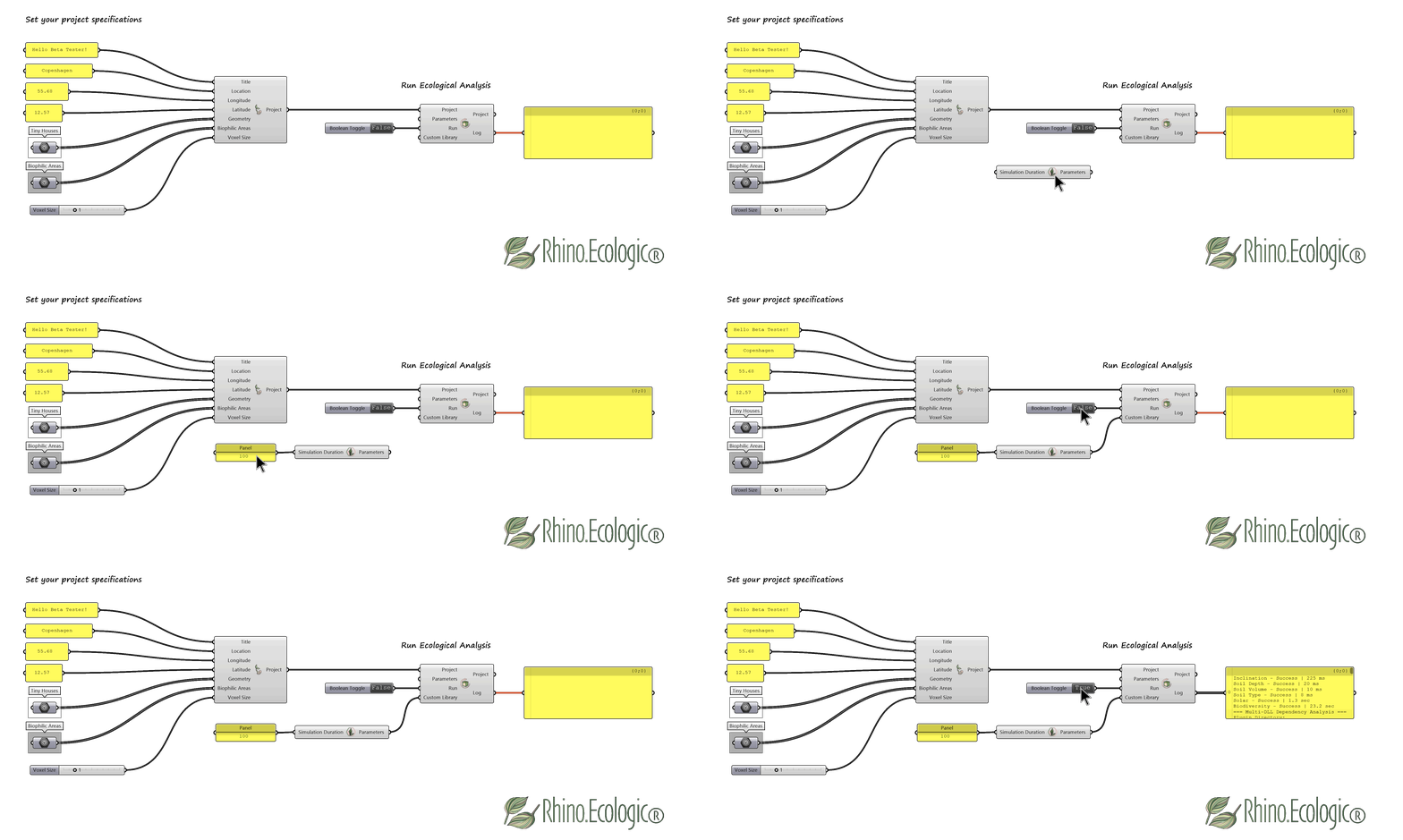
Customized environmental and ecological analysis using modified Biodiversity Parameters.
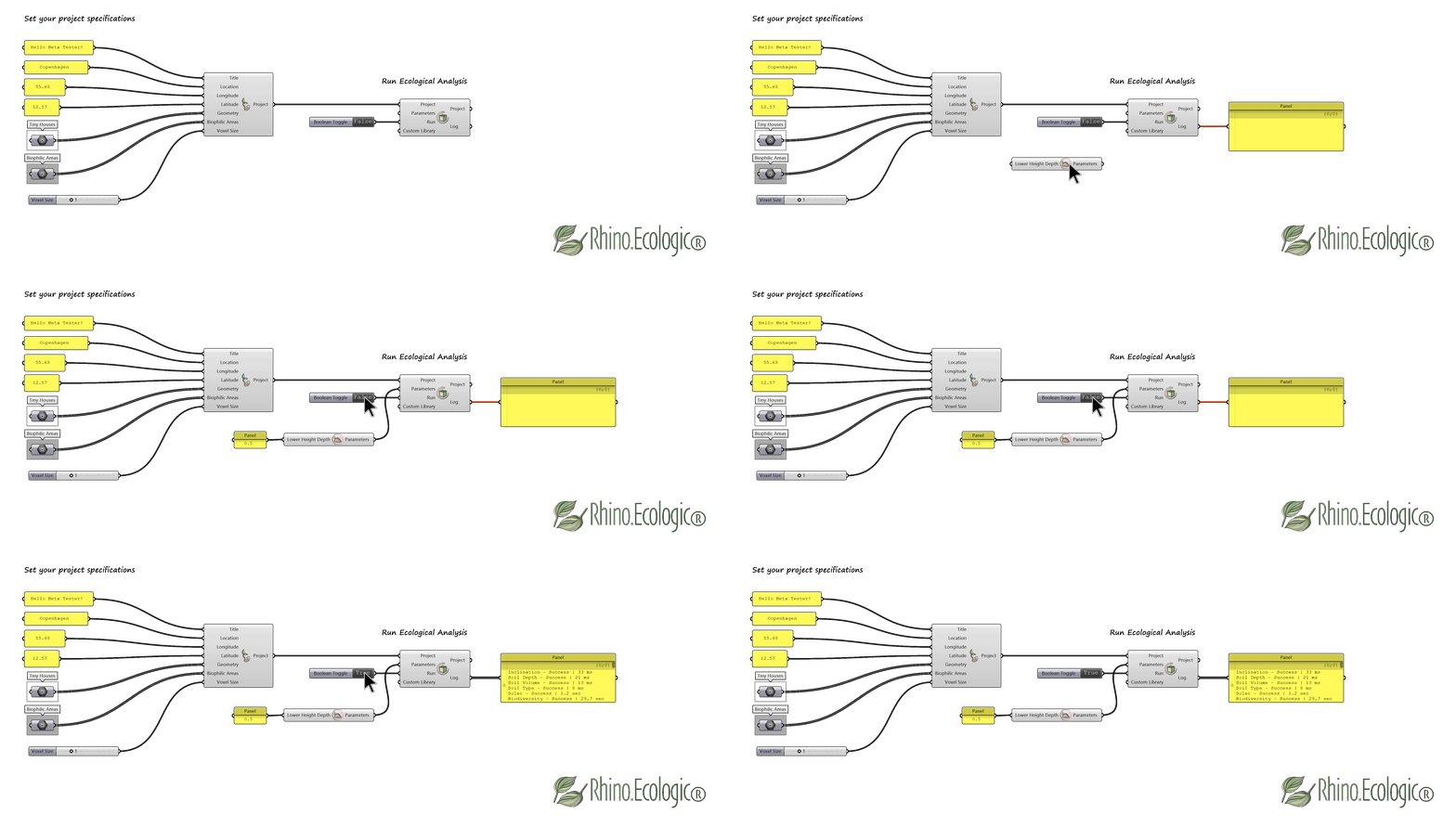
Customized environmental and ecological analysis using modified Soil Depth Parameters.
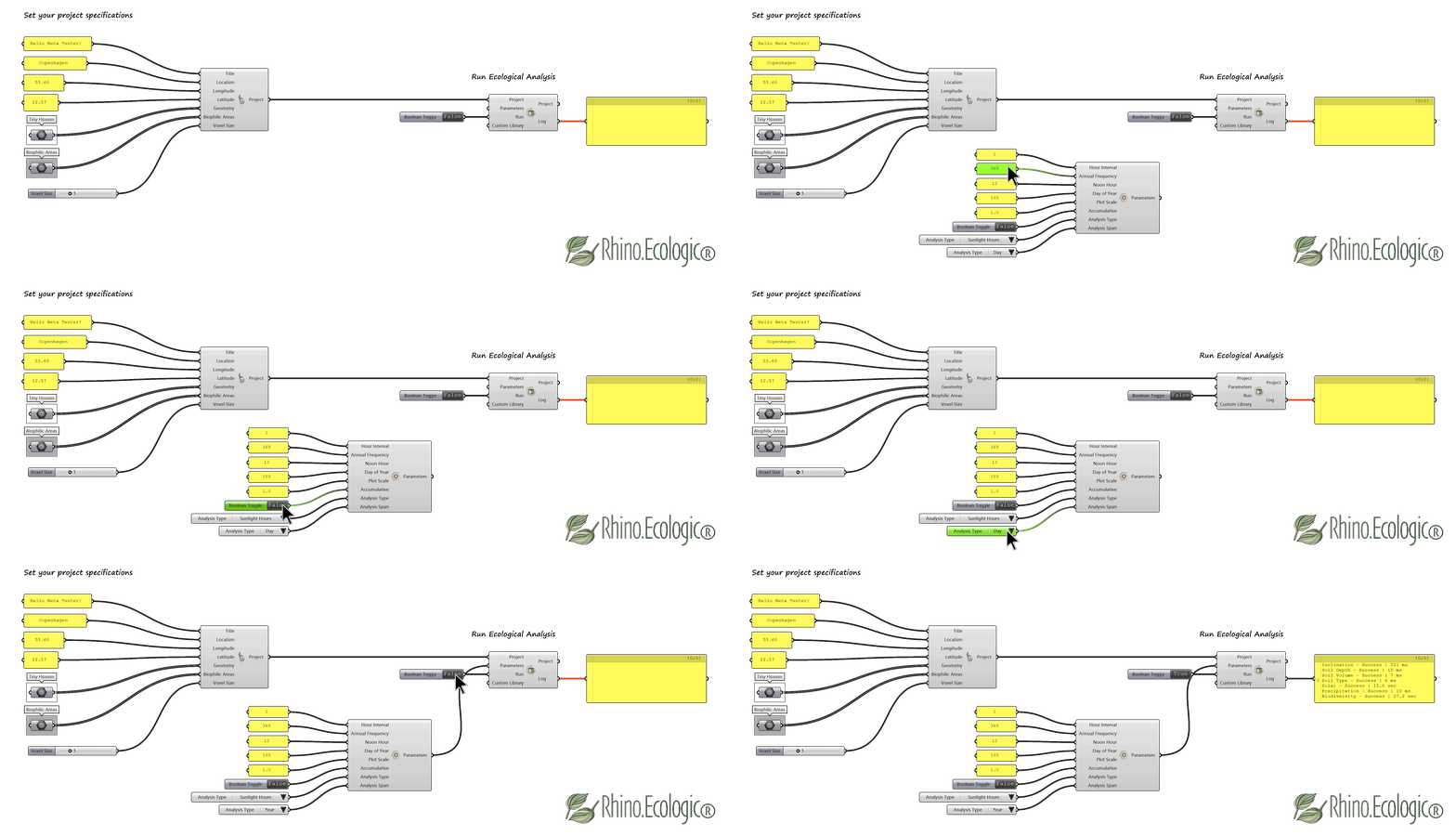
Customized environmental and ecological analysis using modified Solar Parameters.
Step 5: Data outputs
- Components in the Data tab return environmental and ecological data at the predefined resolution (
Voxel Size). The resulting data can be used for further processing and visualization in Grasshopper. - Use the analyzed project output from the
Run Ecological Analysiscomponent as the input for theDeconstruct Voxelcomponent. Retrieve the data outputs for the different categories: geometry (Id,Mesh,Position,Size,Inclination), environmental (Solar,Soil Depth,Soil Volume,Soil Type,Precipitation), and ecological (Timestamp,Species,Biomass,Abundance/Biodiversity,Plant Volume). - Access the analysis data outputs for your project using the
Get Voxels by Typecomponent. SelectExterior Envelopeto obtain the results for your project’s outer envelope.
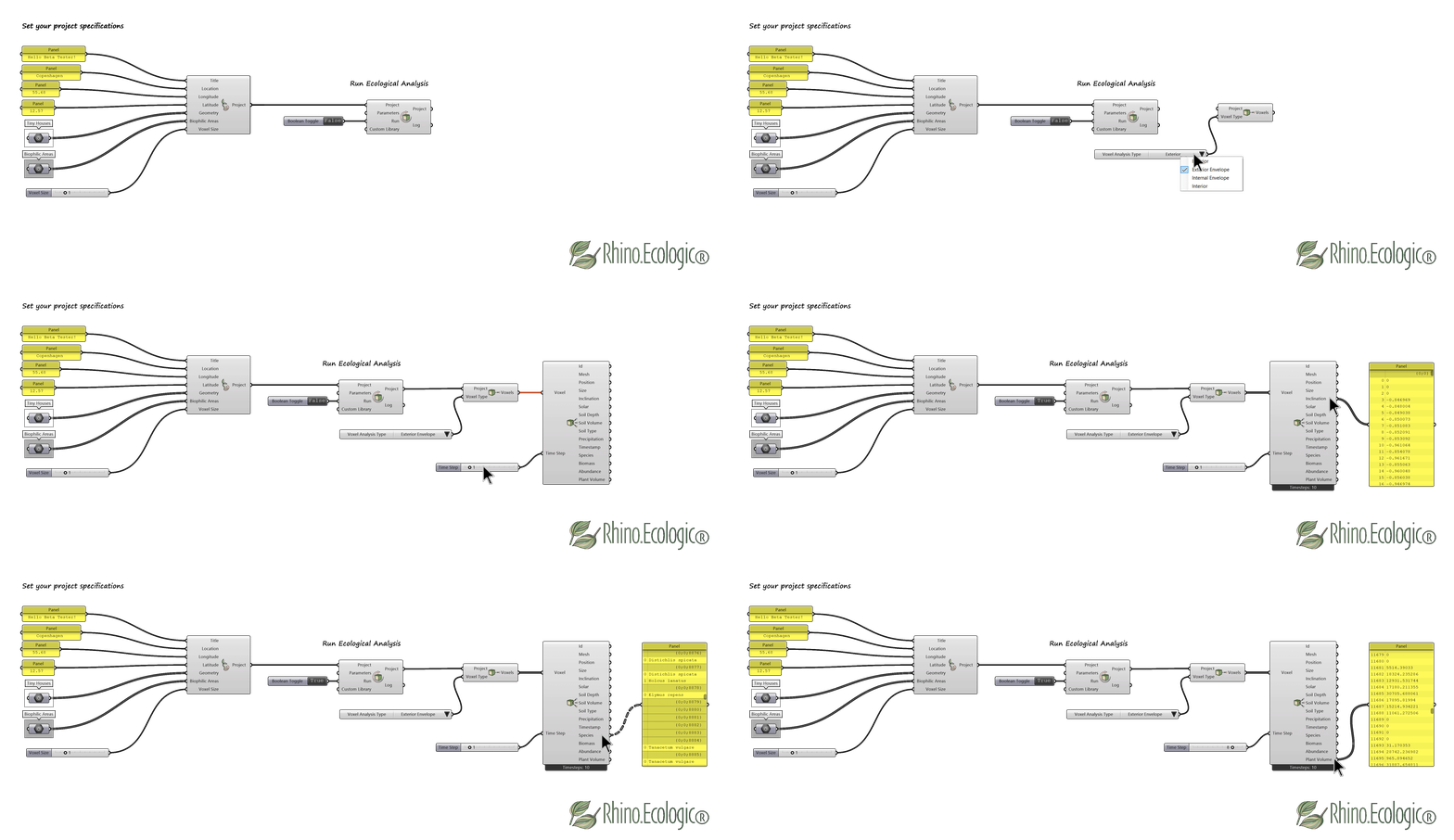
- Adjusting the
Time Step(years) input in theDeconstruct Voxelcomponent returns ecological results for each year of the simulation.
Step 6: Visualize & export
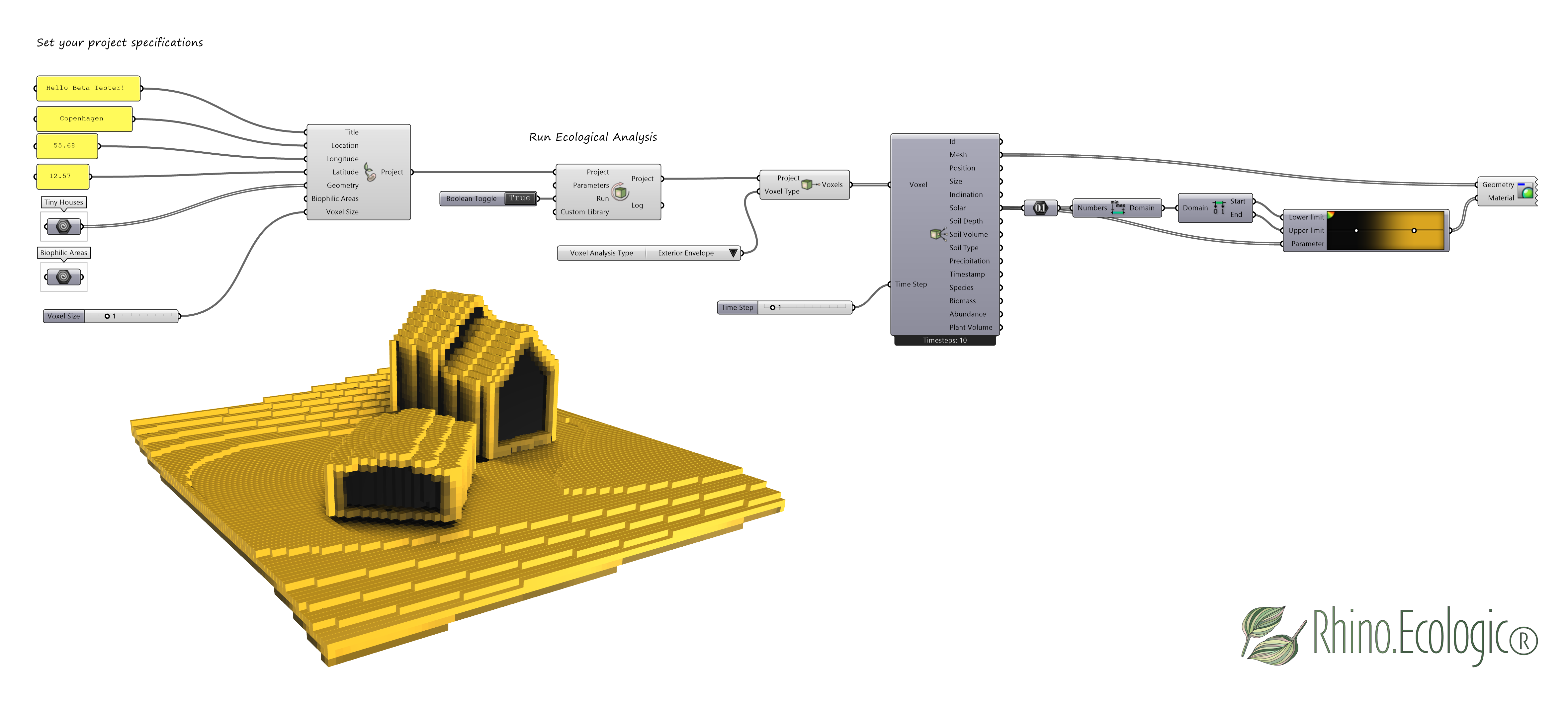
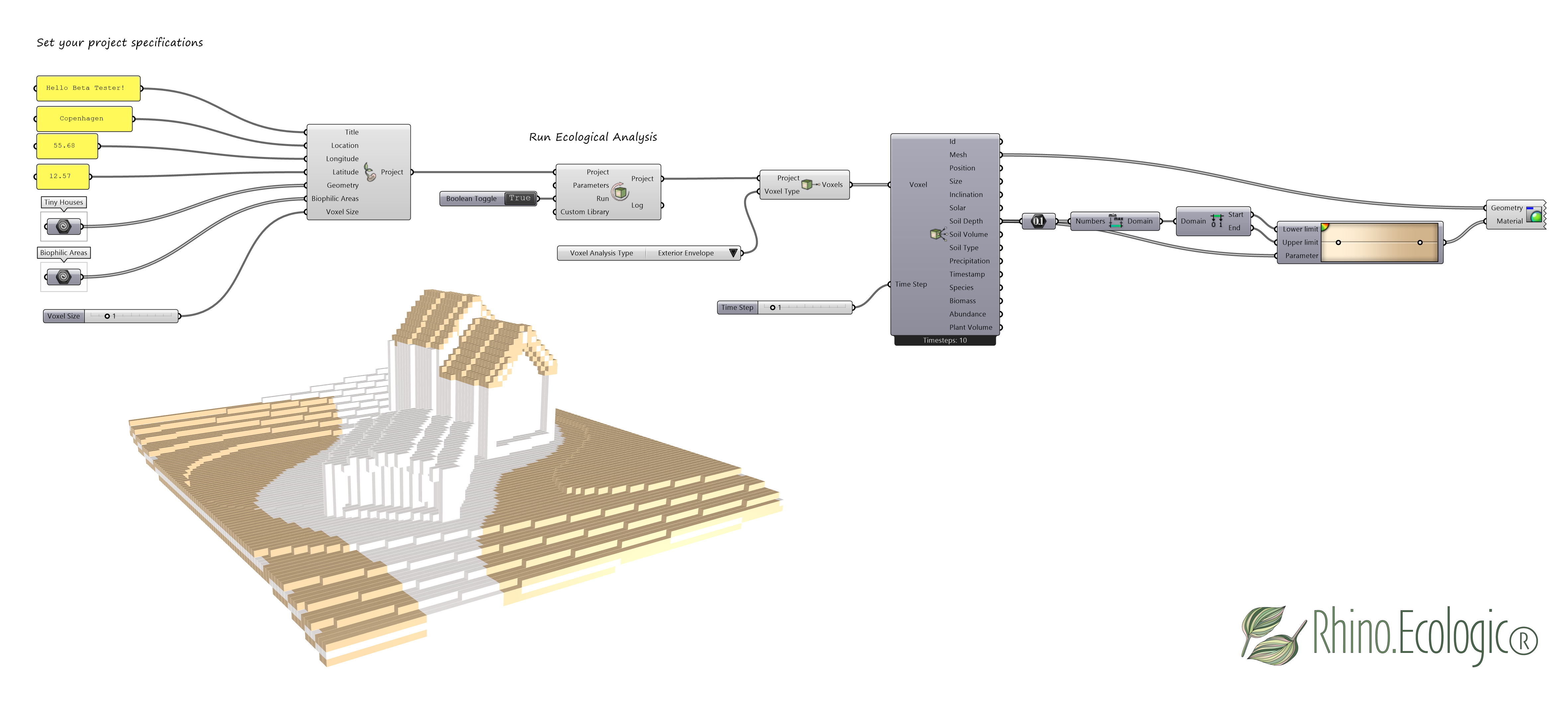
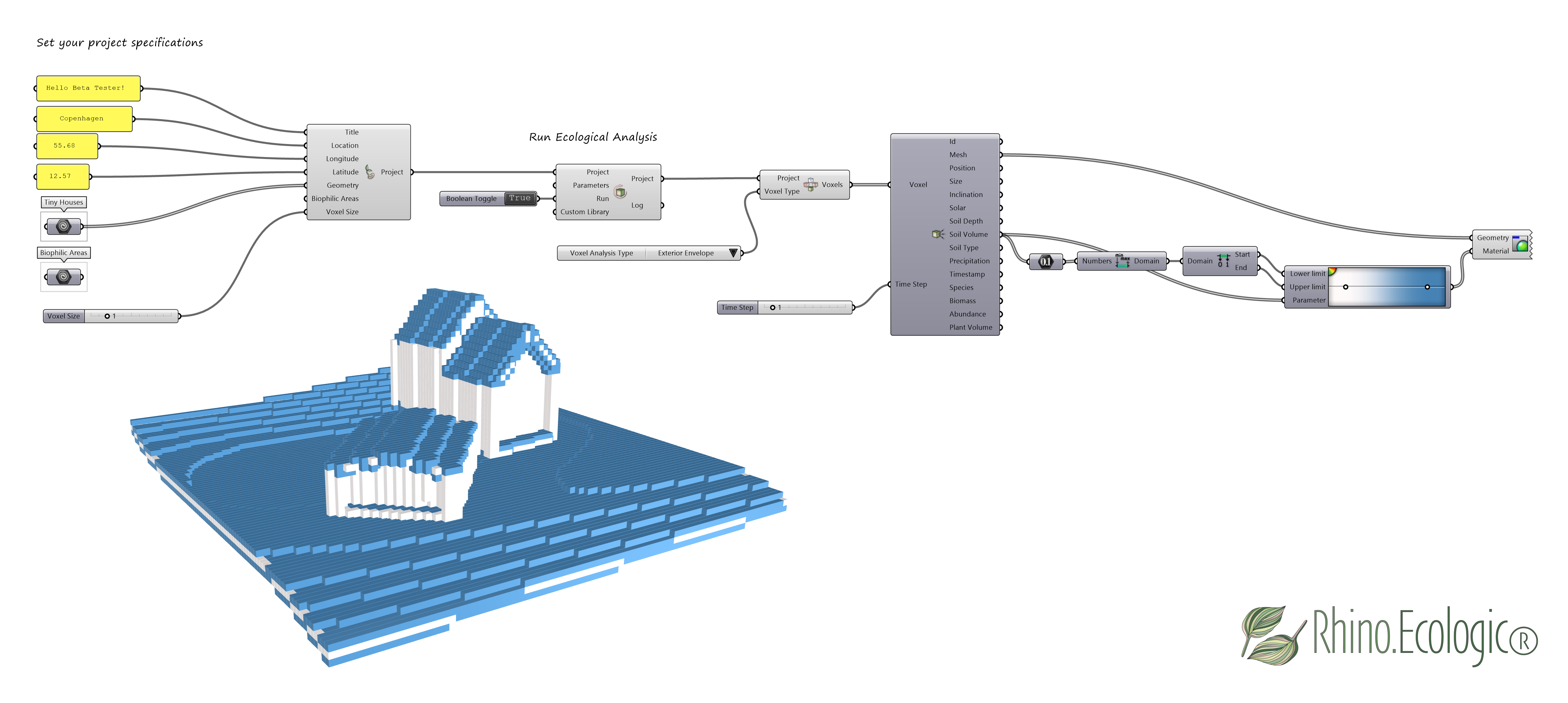
- Use standard Grasshopper components such as
Domainsfrom the Math tab,Gradientfrom the Params tab, andCustom Previewfrom the Display tab to visualize the data outputs in Rhino. - Use the provided components to visualise the
Solaranalysis results on your project in Rhino.
- Use the provided components to visualise the
Soil Depthanalysis results on your project in Rhino.
- Use the provided components to visualise the
Precipitationanalysis results on your project in Rhino.
- Use the provided components to visualise the
Biodiversityanalysis results on your project in Rhino.
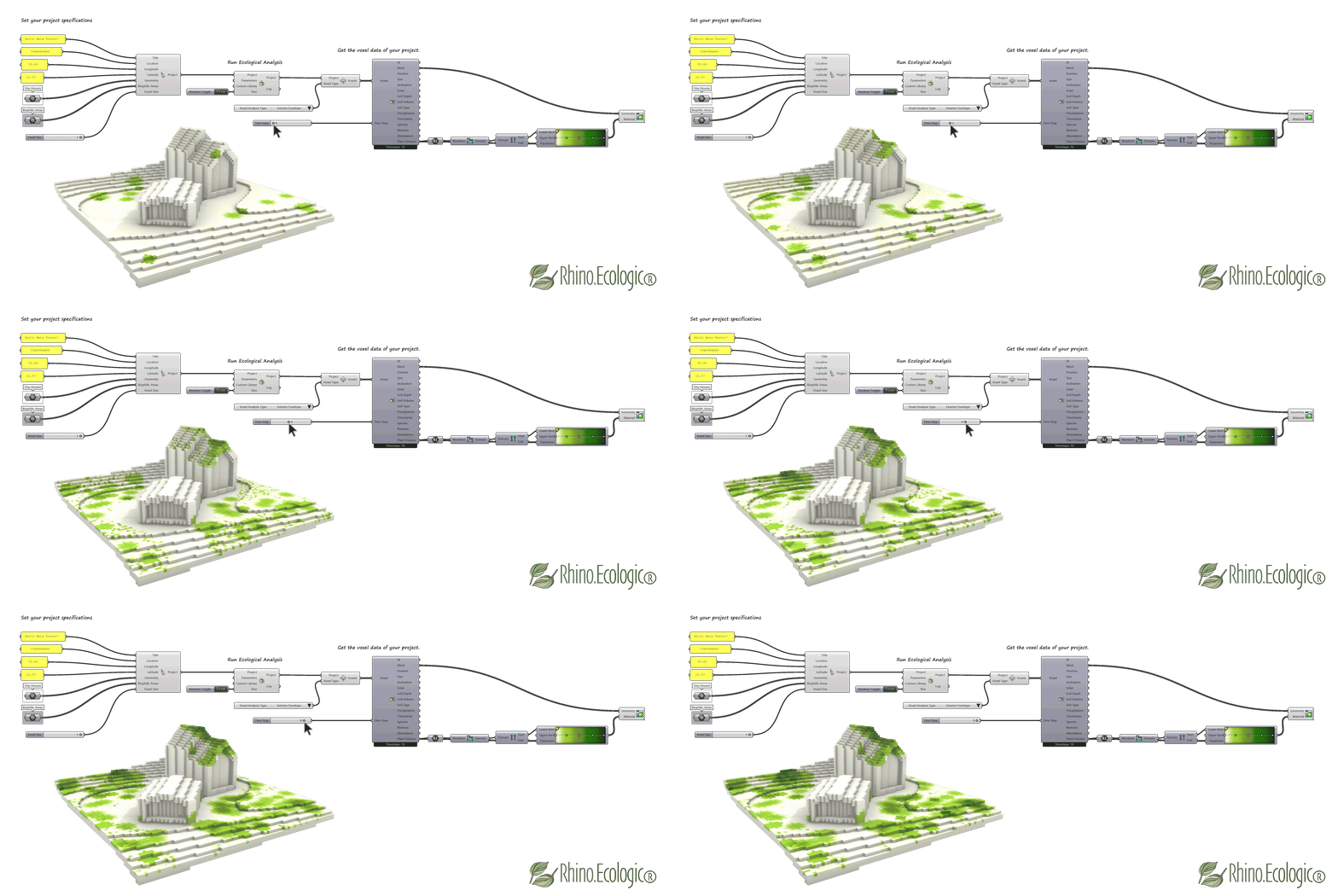
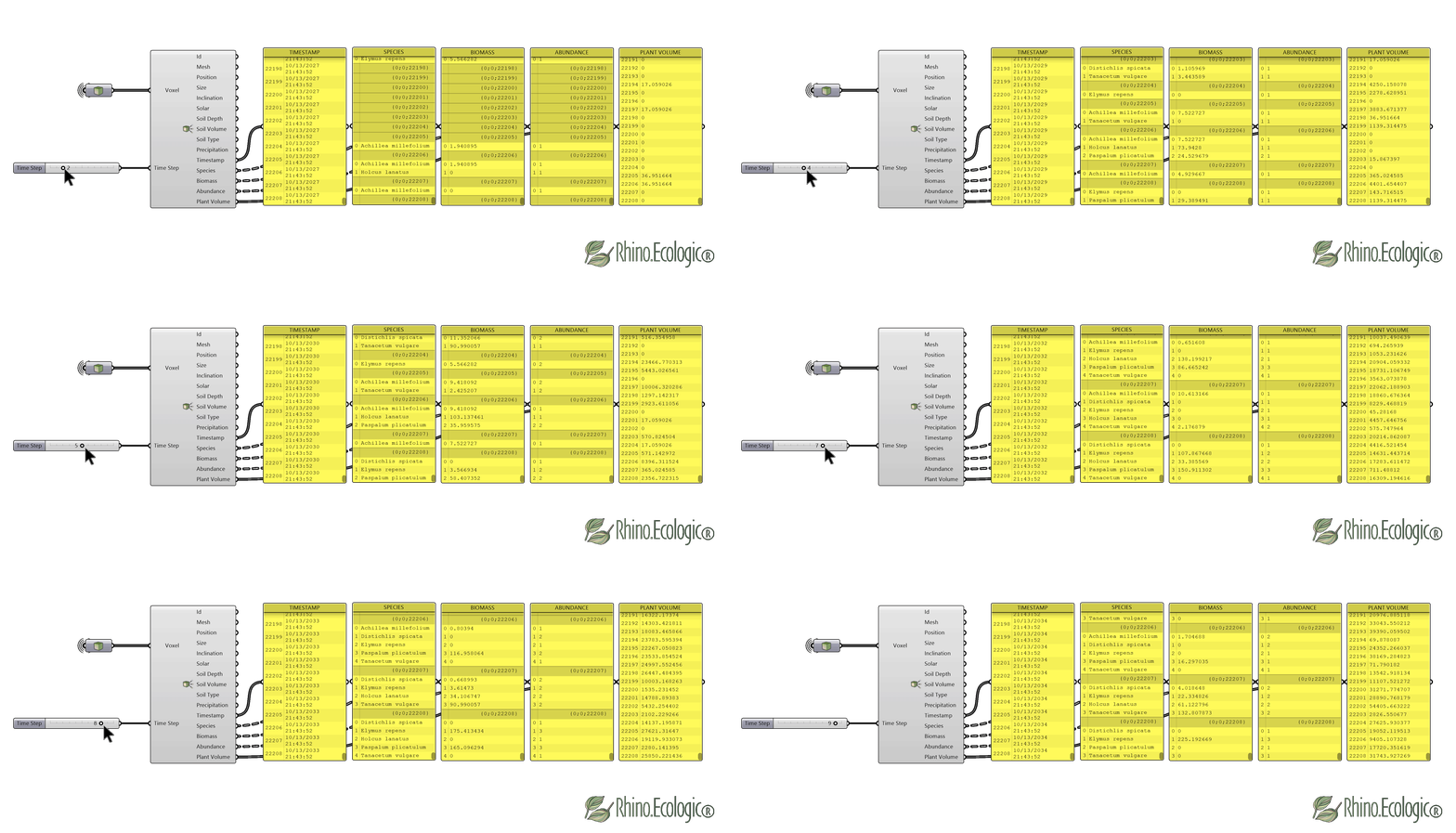
For instance, Plant Volume simulation results for a Species Library of trees, shrubs, and herbs. Unlike Biomass (accumulated biological dry mass), Plant Volume quantifies the geometric volume occupied by vegetation in each voxel.
- Connect your analysed project and set the
Time Step(in years) to retrieve the data. This lets you simulate plant growth over time and visualise herbs, shrubs, and trees as true 3D voxel representations.
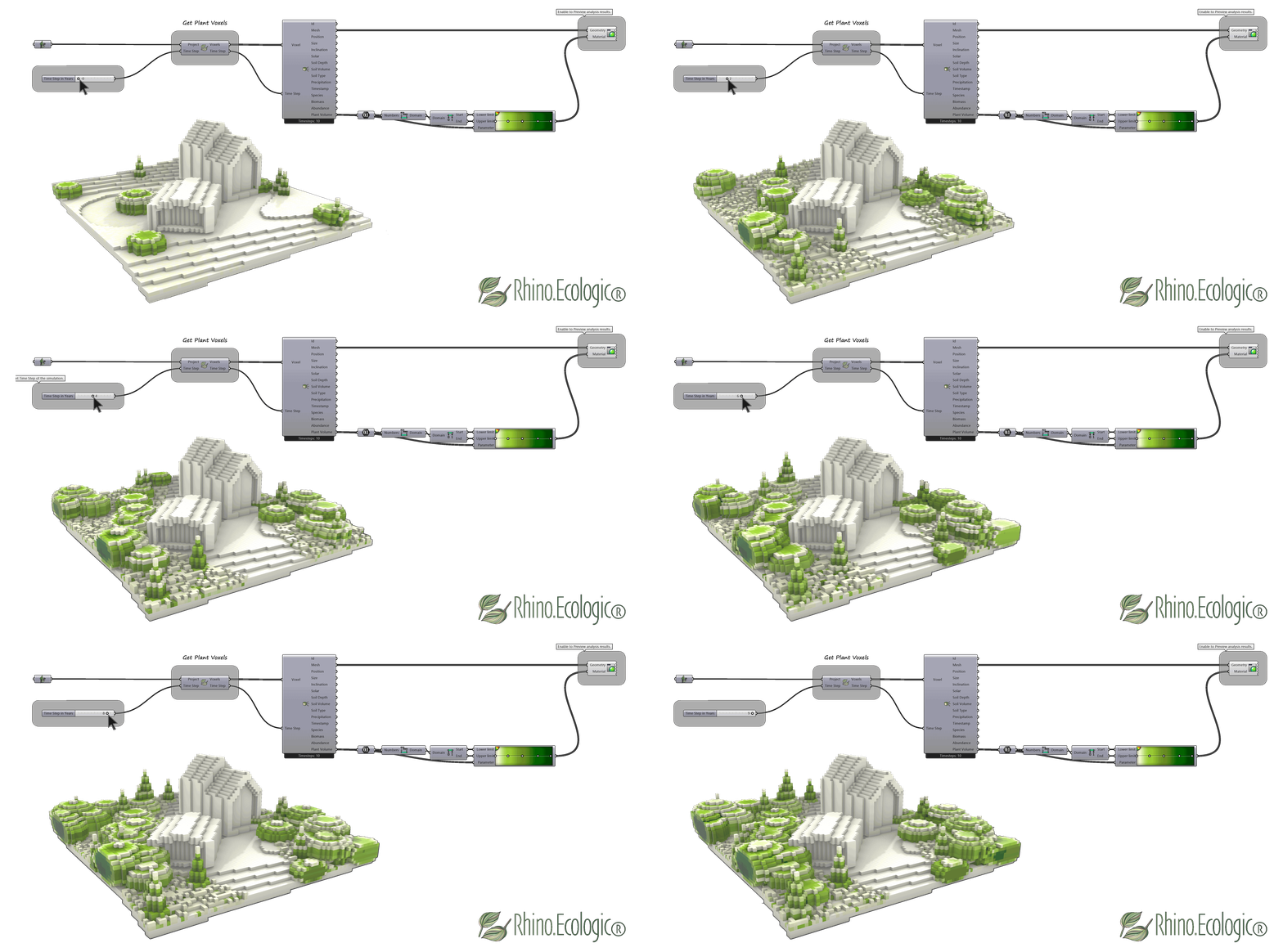
The Get Plant Voxels component enables time-based plant growth simulations for your Project.
- Save your Rhino.Ecologic project using the
Save ProjectGrasshopper component in the Project tab.
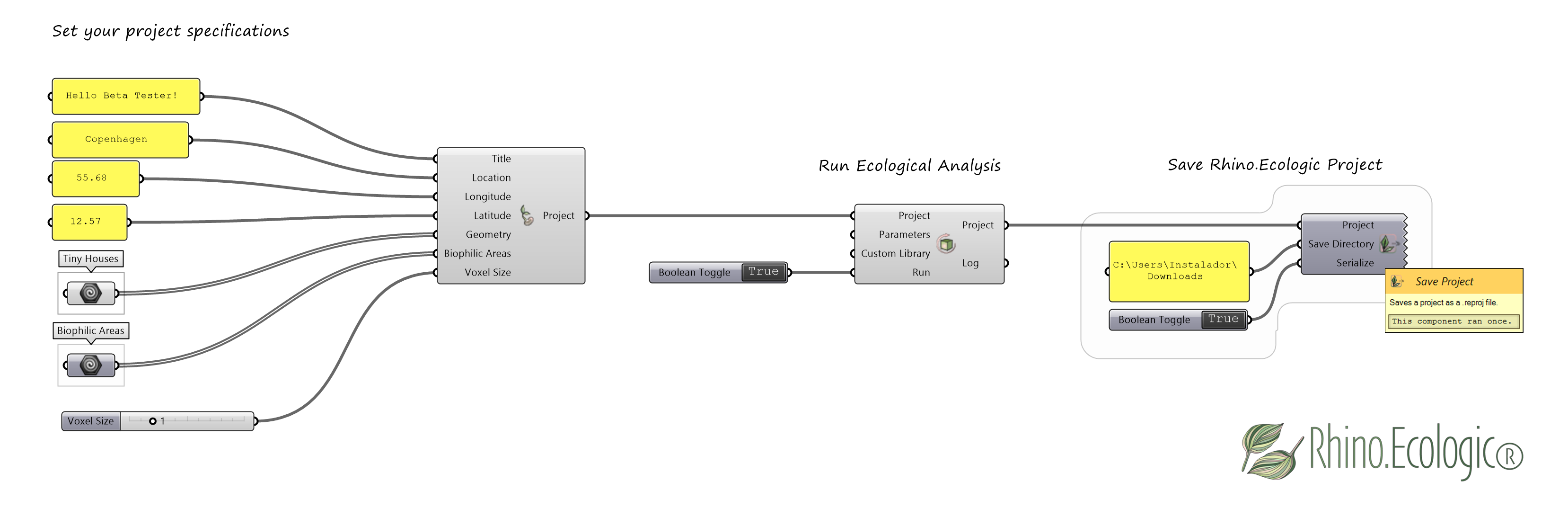
- For more details on customizing your analysis setup and information on ecological analysis, see the Rhino.Ecologic User Guide.
Help and feedback
If you encounter any issues or have questions, feel free to reach out. Please share your feedback, bug reports, or feature requests using this short form:
Referencing
When referring to Rhino.Ecologic® in a scientific publication, please cite as follows:
Vogler, V., Kourkopoulos, E., Fraguada, L., Mimet, A., & Joschinski, J. (2025). Integrating ecological modeling into the 3D CAD system Rhinoceros. JoDLA – Journal of Digital Landscape Architecture, Issue 10–2025, 86–100. Berlin/Offenbach: Wichmann Verlag im VDE VERLAG. e-ISSN 2511-624X. https://doi.org/10.14627/537754009
Vogler, V., Kourkopoulos, E., Joschinski, J., & Eckelt, K. (2025). Developing volumetric data models for ML training datasets using Grasshopper. JoDLA – Journal of Digital Landscape Architecture, Issue 10–2025, 101–113. Berlin/Offenbach: Wichmann Verlag im VDE VERLAG. e-ISSN 2511-624X. https://doi.org/10.14627/537754010
Eleftherios, Jens, and Verena.

© 2026 McNeel Europe S.L. All rights reserved.